
14:24Machine-translated from Russian by AIRead in Azerbaijani
A Laptop for 4 Years
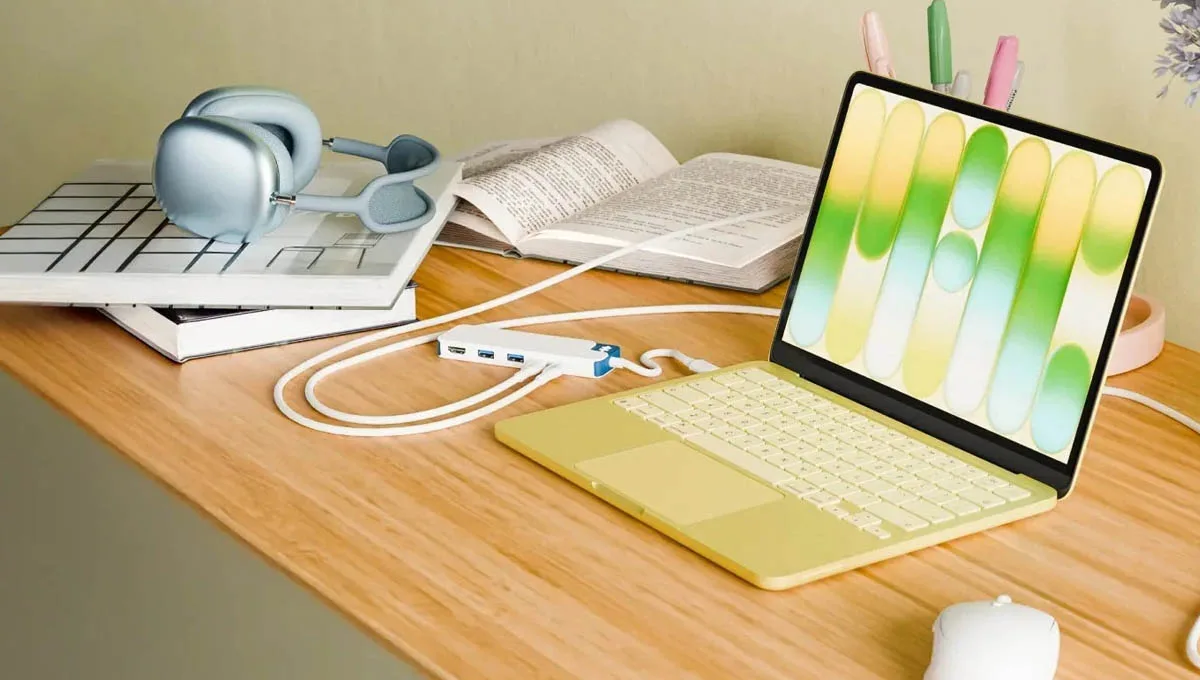
Choosing a student laptop is fundamentally different from choosing a gaming computer or professional workstation.
A laptop for a student is a little more than just another computer. It must withstand several years of being carried in a backpack every day, dozens of open tabs, video conferences, presentations, PDF files, programming, spreadsheet work, and endless deadlines. At the same time, most of the time, what it needs is not record-breaking performance but a combination of battery life, low weight, a comfortable keyboard, and enough performance headroom.
That is why choosing a student laptop is fundamentally different from choosing a gaming computer or professional workstation. There is no point in overpaying for a flagship processor just for a benchmark score if the main applications will be Word, a browser, Teams, and an electronic library. But cutting costs on RAM or storage can turn an inexpensive purchase into a source of frustration after just 1-2 years. Current recommendations agree on one key point: there is no universal “best laptop for students.” A device should be chosen not by the name of the department or the maximum number of cores, but by the actual use case.
The main question is not “Which laptop is the best?”
The most common mistake when choosing a computer for school is starting with the processor. A buyer sees Core Ultra 7, Ryzen 7, or Apple M5 and decides that a more expensive chip automatically means a better laptop. In practice, however, the balance among several specifications is much more important for a student.
First, there is RAM. In 2026, 16 GB should be considered the optimal minimum for a computer purchased for the entire period of study. 8 GB is still enough for simple use cases—documents, browsing, and online services—but it is already a compromise. A modern browser can take up a significant portion of the available memory, and if dozens of tabs, Teams or Zoom, PDF documents, a text editor, and a spreadsheet are open at the same time, the lack of RAM becomes noticeable.
Second, there is SSD storage. The optimal starting point is 512 GB. 256 GB may look entirely sufficient in the store, but space quickly runs out after installing applications and accumulating documents, photos, video content, and even just a couple of games.
Third, there is the screen. A student may spend 6-8 hours a day looking at it, so display quality is not merely cosmetic. A good high-resolution IPS or OLED panel is noticeably more comfortable for reading and working with multiple windows. A touchscreen is especially useful for those who work extensively with PDFs, diagrams, and handwritten notes.
Finally, there are weight and battery life. If a laptop has to be carried between several university buildings, the difference between 1.2 and 2 kg over the course of a day is more noticeable than the difference between two adjacent processor models.
There is an important detail: in thin modern laptops, RAM is often soldered to the motherboard. In other words, buying a model with 8 GB now and adding another 8 or 16 GB two years later is often impossible. That is why paying extra for 16 GB at the time of purchase is one of the few upgrades that can genuinely extend a computer’s useful life.
For programming, virtual machines, data analysis, and some engineering disciplines, it makes sense to consider 32 GB right away.

You can save money, but be careful
If the budget is limited, it can be tempting to buy the cheapest Windows laptop you can find. That is not always a good idea. Chromebooks are particularly interesting in the lower price segment. If the learning process is built almost entirely around a browser, Google Docs, Microsoft 365 Online, electronic libraries, and educational platforms, ChromeOS can meet a student’s basic needs. These computers start quickly, offer good battery life, and require little maintenance.
But before buying a Chromebook, you need to do one thing: check the requirements of the academic program. If the university uses a specialized Windows application for statistics, engineering calculations, CAD, accounting, programming, or laboratory work, ChromeOS may be a dead end. Even having a Linux environment within ChromeOS does not make a Chromebook a complete replacement for a Windows computer in every scenario. The rule is therefore simple: if 90% of the work takes place in a browser, a Chromebook makes sense. If there are even a few mandatory programs, Windows or macOS is better.
A good laptop in the category that represents the most attractive segment for most students can already offer 16 GB of RAM, a 512 GB SSD, a modern processor, and enough battery life for a full day of classes. And there is no need to buy a heavy 15-inch or 16-inch model. One representative option in this class is the Acer Aspire Go 15. It is not a premium ultrabook, but this type of machine handles the vast majority of everyday student tasks: browsing with many tabs, documents, spreadsheets, video calls, multimedia, and basic programming.
The concept itself is much more important here than the specific model. A student absolutely does not need to buy an expensive laptop with a metal body, OLED, and a flagship processor. Sometimes it is more sensible to buy a basic device with a good memory and storage configuration. If the user knows in advance that they will work with virtual machines, large projects, or many applications at once, it is worth looking for a version with 32 Пи. Paying extra for memory in this case is far more sensible than moving to a more expensive processor.

MacBook: when it is genuinely a good choice
For many students, a MacBook remains one of the most attractive options. And that is not only because of the performance of Apple’s proprietary processors. Modern MacBooks combine low power consumption, good battery life, high-quality displays, low weight, and strong performance.
The current MacBook Air with the M5 processor has become a particularly interesting all-around option: its performance is already very close to a professional level in many everyday tasks, while the computer remains thin and quiet. For a student, this means a fairly simple routine: take the laptop along in the morning, attend several classes, work in the library, participate in a video conference, and return home in the evening without having to look for an outlet every few hours.
But the MacBook has one fundamental limitation—software compatibility. Before buying one, you need to check whether the necessary applications work on macOS. There are usually few problems for humanities, business, journalism, most office tasks, web development, and many creative professions. But specialized engineering software, some corporate applications, and certain educational tools may require Windows. Therefore, “Is Apple better than Windows?” is the wrong question. The right question is: “Is macOS compatible with the software used by my department?”
But what if you want Windows without carrying extra weight in your backpack? For this scenario, the class of lightweight 13-inch and 14-inch ultrabooks is particularly interesting. The ASUS Zenbook 14 OLED is a good example of where this category is heading. Another interesting option is lightweight Windows laptops with ARM processors. For example, the current ASUS Zenbook A14 focuses specifically on low weight and battery life: modern versions with Qualcomm Snapdragon X Plus processors offer 16 GB of RAM and a 512 GB SSD, and in some tests these models deliver more than 20 hours of battery life. But ARM laptops require the same compatibility checks as MacBooks. Most popular Windows applications already work properly on them, but specialized software and older utilities may behave differently.
STEM, programming, and engineering
Here, the rules change. A student who will work with MATLAB, CAD, GIS, virtual machines, local development environments, or large data sets needs performance headroom. If serious 3D modeling or machine learning is involved, the requirements become even higher. In this case, what matters most is not the processor’s maximum frequency but the combination of the processor, RAM, and the ability to perform properly under sustained loads.
The Lenovo ThinkPad X1 Carbon Gen 13 stands out in this category. In a configuration with an Intel Core Ultra 7 and 32 GB of RAM, it is designed specifically for tasks such as CAD, MATLAB, Python, and engineering applications. Another advantage of the ThinkPad is its keyboard and business-class build quality, which is especially important for someone who plans to do a lot of typing and programming. However, the price of this model is unlikely to fit every student’s budget.
Engineering students should also consider Windows as a platform. This is one of those cases where macOS may be less convenient not because of a lack of performance, but because of software incompatibility.

Design, video, and architecture: a graphics card is needed here
Students in creative fields are in a special position. A powerful graphics card is nearly useless for working with text, but for Premiere Pro, DaVinci Resolve, Blender, 3D Studio Max, or certain Adobe tasks, it can become one of the key components. In such cases, it is worth considering not a conventional ultrabook but a high-performance model with a discrete GPU. One option is the MSI Prestige 16 AI Evo with an Intel Core Ultra 9 processor, 32 GB of RAM, an NVIDIA GeForce RTX 4060 Mobile graphics card, and an OLED display with 4K resolution. Such a computer is significantly heavier and more expensive than a typical student laptop, but its hardware capabilities are already suitable for professional tasks.
The display is especially important here. For a designer, the screen is a work tool, so an OLED display with wide color gamut coverage can be much more useful than a few extra percentage points of processor performance. But there is a downside: a high-performance laptop is usually heavier, gets hotter, makes more noise under load, and drains its battery much faster.
Can you use one laptop for both studying and gaming?
Yes. But you will have to accept compromises. A gaming laptop with an RTX 4050/4060/5050 or higher will easily handle office applications, programming, and most academic tasks. Moreover, a discrete graphics card is useful not only for gaming but also for 3D modeling, video editing, and certain AI tasks. But carrying such a computer to lectures every day is not particularly pleasant.
As this kind of “computer for everything,” you could consider, for example, the MSI Cyborg A15 with an AMD Ryzen 7 processor, an NVIDIA GeForce RTX 5050 graphics card, and a 15.6-inch screen with a 144 Hz refresh rate. At the same time, such a laptop is heavier, hotter, and has much worse battery life under load than a thin ultrabook. Therefore, a student who plays for a few hours a week should not buy a gaming laptop just for games. But if the computer also needs to serve as a study machine, gaming system, and 3D tool, it becomes a rational choice.
What about artificial intelligence?
In 2026, almost every manufacturer is trying to add the word AI to its laptop descriptions. But a student should not automatically pay more just because an NPU is included. Buying such a laptop genuinely makes sense if the user regularly works with local AI features: automatic image processing, transcription, text generation and processing, intelligent operating system features, or specialized applications that use the NPU. But for ordinary academic work, basic performance, RAM and SSD capacity, and battery life are far more important.
In other words, an NPU is a nice bonus, but not a reason to buy a laptop with 8 GB of RAM instead of a model with 16 GB. That is why, in 2026, it is better to view AI features as part of the overall platform rather than as the main selection criterion.

Our verdict
In 2026, a good student laptop is no longer necessarily an expensive 1,500-dollar ultrabook or a budget Chromebook costing 300-400 dollars. The market finally offers a sufficiently wide range of devices, so the buyer’s main task is not to find an absolute winner but to correctly identify their own use case.
A student laptop should not be the most powerful computer that can be bought for the money. It should be the most balanced computer that can comfortably last for four years. That is why the formula of 16 GB of RAM + a 512 GB SSD + a modern energy-efficient processor + a good 14-inch screen + genuine battery life for a full day of classes looks much more sensible today than chasing the highest specifications.
Five mistakes when buying a student laptop
- Buying a processor instead of a computer. An Intel Core Ultra 7 does not make a laptop better by itself if it has 8 GB of RAM, a small SSD, and a mediocre screen.
- Choosing 8 GB “because it is enough for now.” A laptop is not being purchased just for today, but for at least several years. 16 GB is a much safer investment.
- Buying a Chromebook without checking the department’s requirements. It is an excellent computer for web-based learning and a poor choice if the university requires Windows programs.
- Ignoring weight. 2 kg may seem like an insignificant difference in the store. But after several months of carrying it every day, the difference between 1.2 and 2 kg becomes very noticeable.
- Overpaying for features that no one will use. A 4K display, RTX 5080, and Core Ultra 9 look impressive in the specifications, but they do not help write an essay. If academic tasks do not require that power, the money is better spent on memory, SSD storage, a high-quality display, or a good external monitor.